Activities Tab
The Activities tab is where researchers and clinicians create, configure, and manage all activities for their study or clinical program.
Activity List
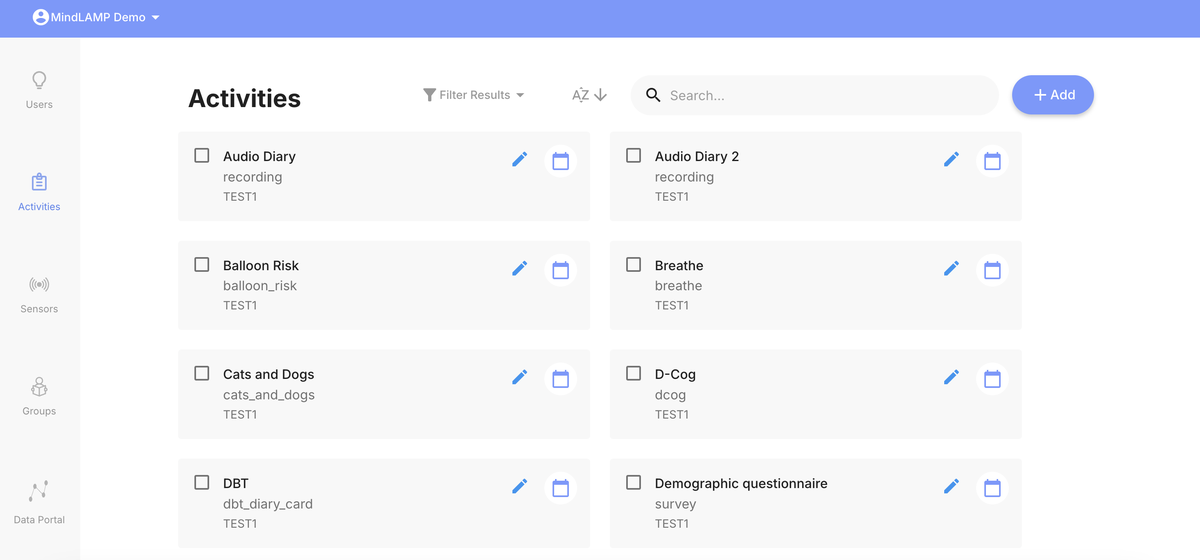
The Activities tab displays all activities in the current scope with:
- Name — The activity title.
- Type — Whether the activity is a tip, survey, cognitive test, manage activity, or activity group.
- Group — Which group the activity belongs to.
Use the search bar and group filter to find specific activities.
Creating Activities
Click + Add to create a new activity. The menu is organized into sections:
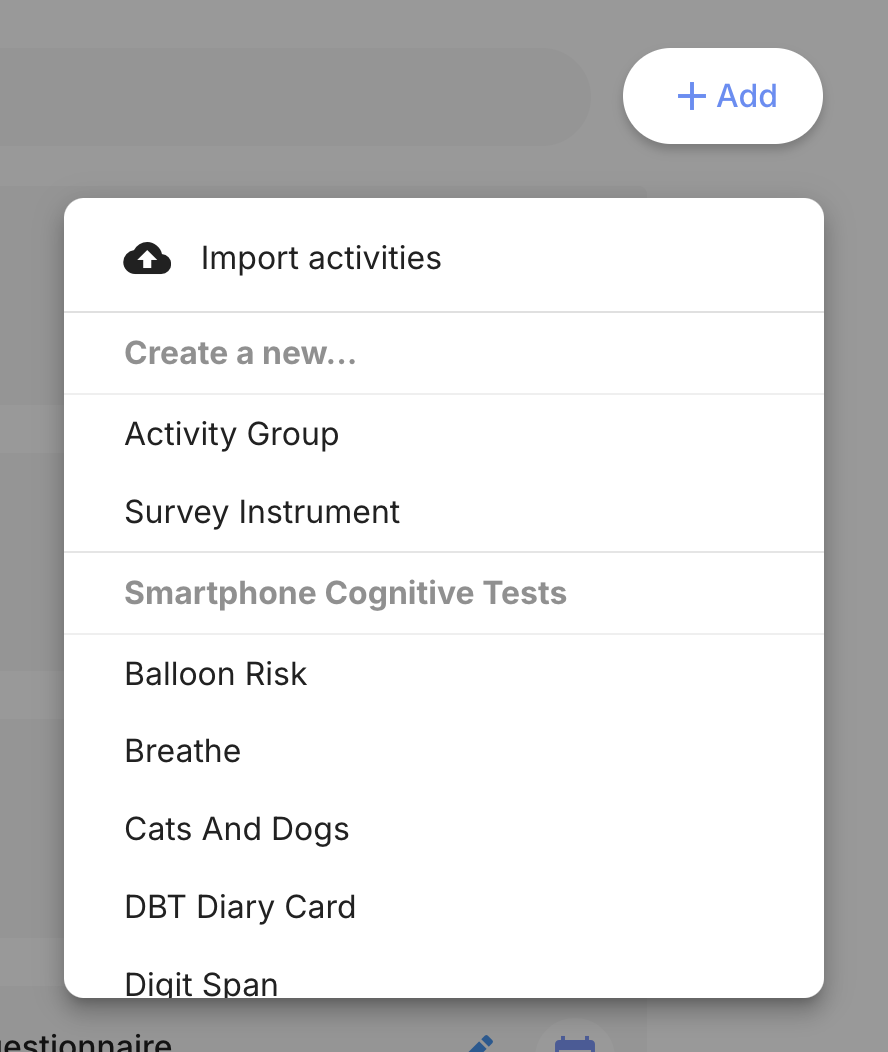
Create a new...
- Survey Instrument — Configurable questionnaires (see Surveys).
- Activity Group — Bundle multiple activities together (see Activity Groups).
Cognitive Tests & Activities
- Cognitive games — Standardized games covering executive functioning, memory, attention, language processing, spatial reasoning, processing speed, social cognition, and decision-making (see Cognitive Games).
- Tips — Educational content for the Learn tab (see Tips).
- Breathe — Guided breathing exercises (see Breathe).
- Journal — Free-form journaling (see Journal).
- DBT Diary Card — Dialectical Behavior Therapy diary card (see DBT Diary Card).
- Voice Recording — Audio recording activities (see Voice Recording).
Import
- Upload a previously exported activity JSON file.
Editing Activities
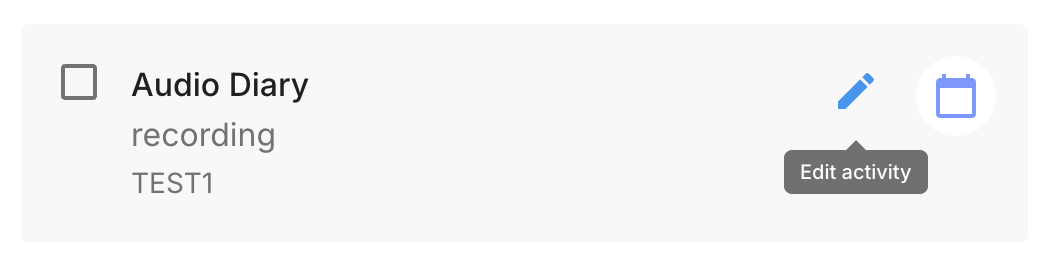
Click the pencil icon on an activity card to edit its configuration. Common options include title, description, icon, tab placement, and activity-specific settings. See Activity Configuration for the full list of common settings and details on each option.
Scheduling
Click the calendar icon on an activity card to configure its schedule. See Scheduling for the full workflow and options.
Import and Export
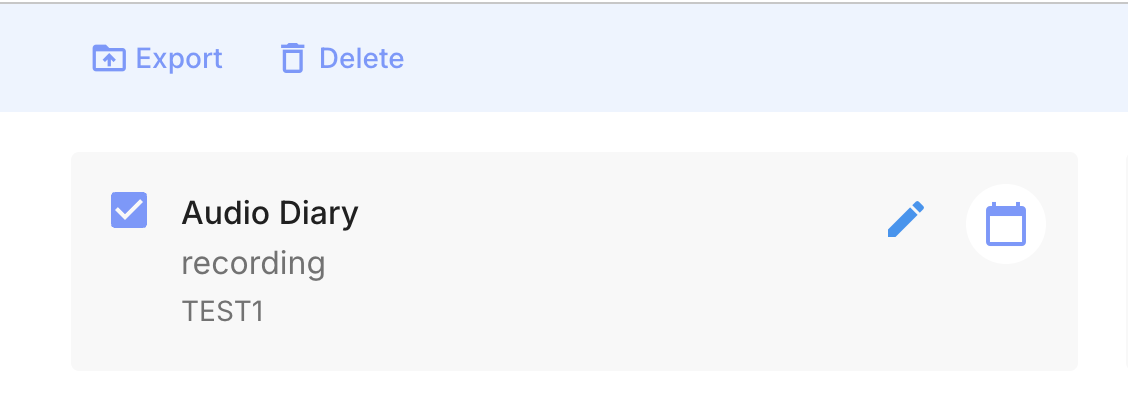
Select an activity by checking its box to reveal Export and Delete actions. Activities can be exported and imported as JSON files. See Import and Export for the full workflow.