Voice Recording
Voice recording activities allow participants to record audio, which can be used for speech-based assessments or qualitative data collection. Recordings are stored as MP3 files.
ActivitySpec: lamp.recording
Configuration
- Navigate to the Activities tab and click + Add.
- Select Voice Recording.
- Select the target group.
- Title the activity.
- Save.
The following labels can be customized by clicking the pencil icon under "Activity Settings":
- Record label — Text displayed on the record button (e.g., "Press to record").
- Re-record label — Text displayed on the re-record button.
This is useful for providing specific instructions on what to record or including a participant safety disclaimer.
Usage
The participant sees a prompt and records up to 2 minutes of audio. They can pause and resume the recording. If unsatisfied, they can press "Clear" and re-record. When satisfied, they press "Upload" to submit.
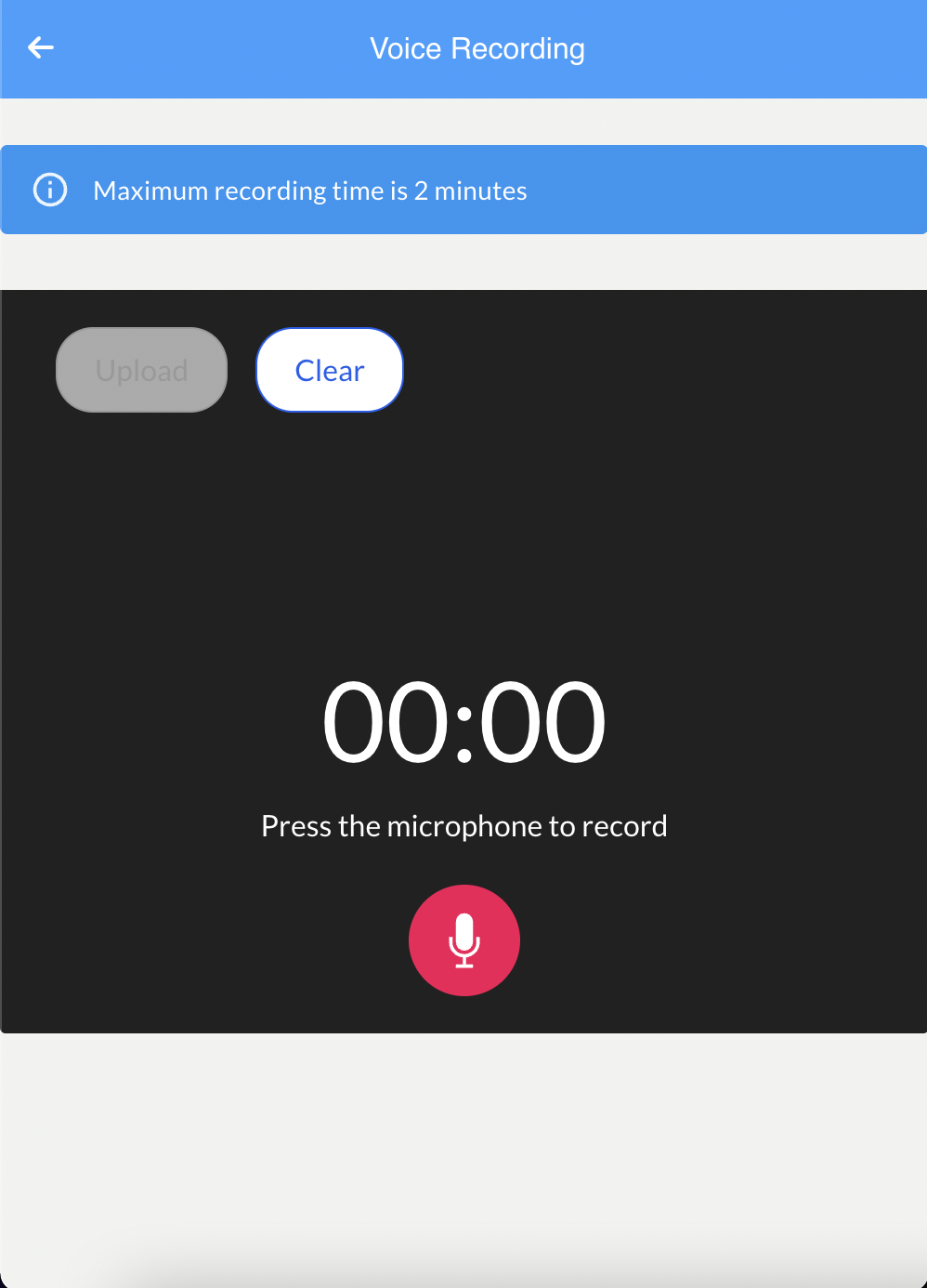 | 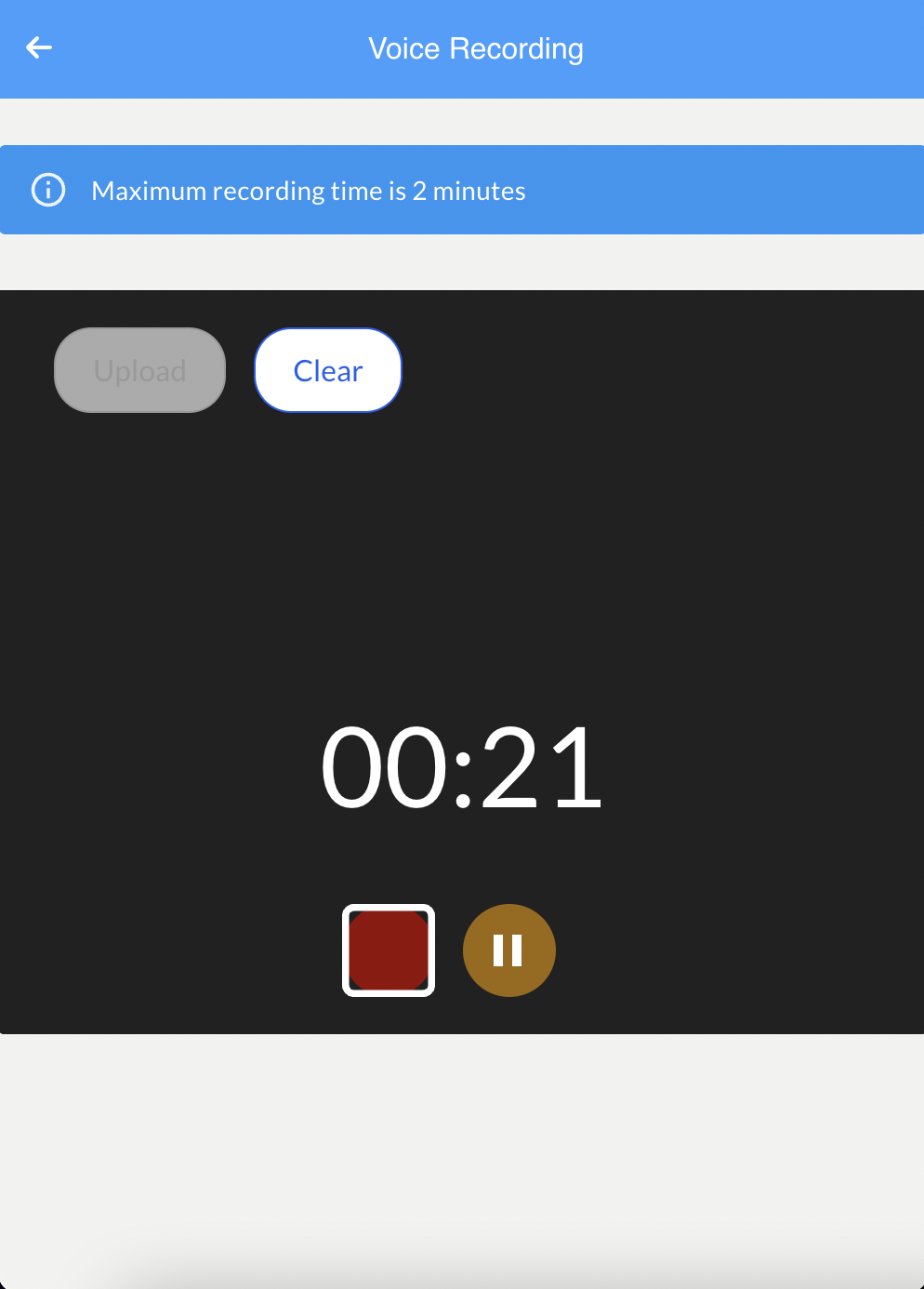 | 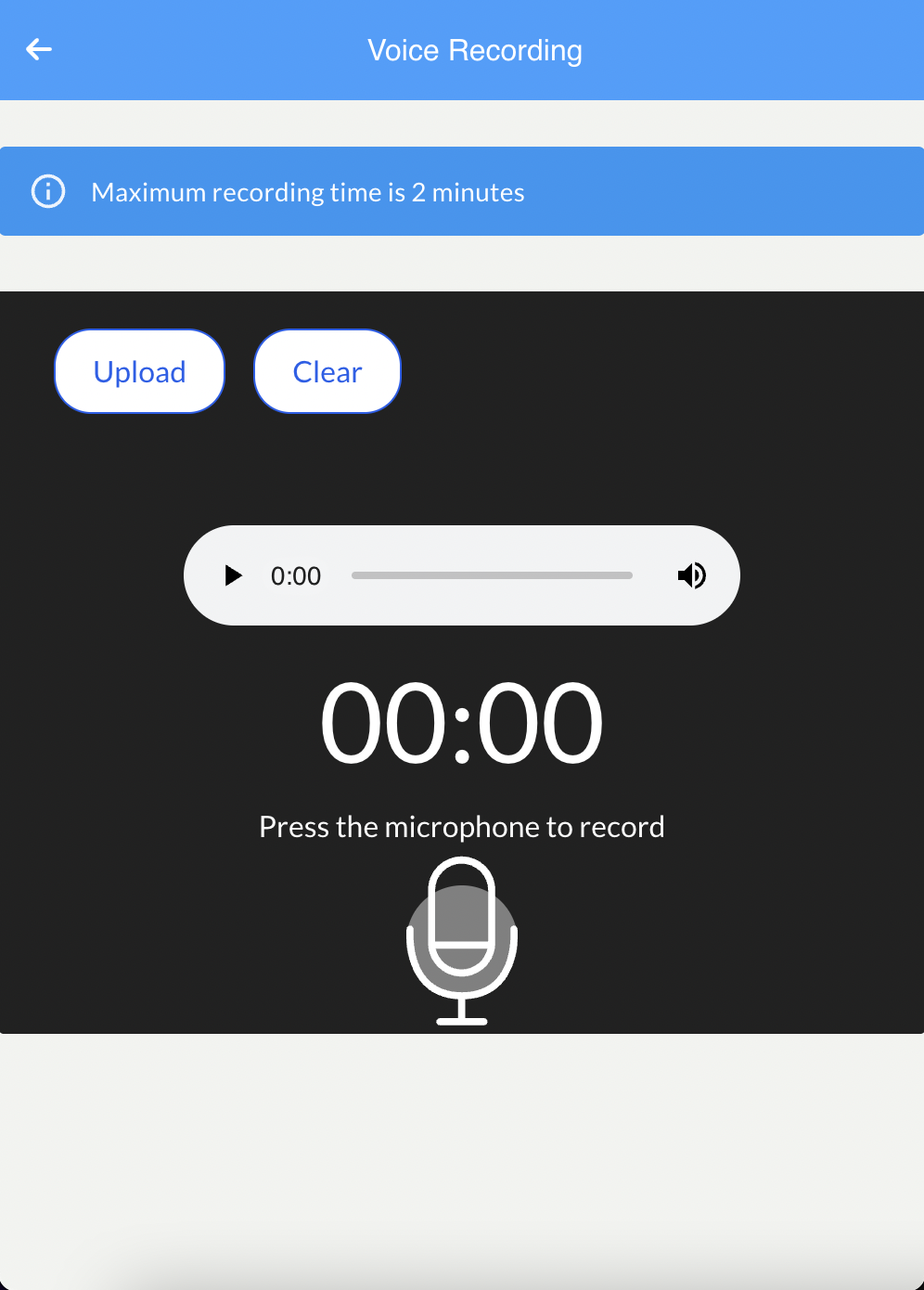 |
| Ready — Press microphone to start | Recording — Stop or pause | Playback — Review before uploading |
Use Cases
- Speech pattern analysis in relation to mood or symptom changes
- Qualitative data collection (participant narratives)
- Pronunciation or language assessments
- Clinical speech assessments
Data
temporal_slices
| Field | Description |
|---|---|
temporal_slices[0].value | The recorded audio as a base64-encoded string (MP3 format) |
Example
{
  "timestamp": 1649859300000,
  "activity": "voice_recording_id",
  "duration": 30000,
  "static_data": {},
  "temporal_slices": [
    {
      "item": null,
      "value": "<base64-encoded audio data>",
      "type": null,
      "duration": 30000,
      "level": null
    }
  ]
}
Cortex Features
voice_survey (raw). No primary or secondary Cortex features process voice data. For custom speech analysis, access raw recordings via cortex.raw.voice_survey.
View in Portal | Python SDK | API Reference