Activity Groups
Activity groups bundle multiple activities together so participants complete them as a single unit in a specific order.
ActivitySpec: lamp.group
Configuration
- Go to the Activities tab and create all individual activities you want to group.
- For each activity in the group, select Customize which Tab this Activity appears in and uncheck all tabs. This hides the individual activities — participants will only see the group.
- Click + Add and select Activity Group.
- Name the group and upload an icon.
- Select which tab(s) the group should appear in.
- In the activity selector, add activities using the (+) icon. Use the delete button to remove.
- Drag activities to arrange them in the desired completion order.
- Save.
Usage
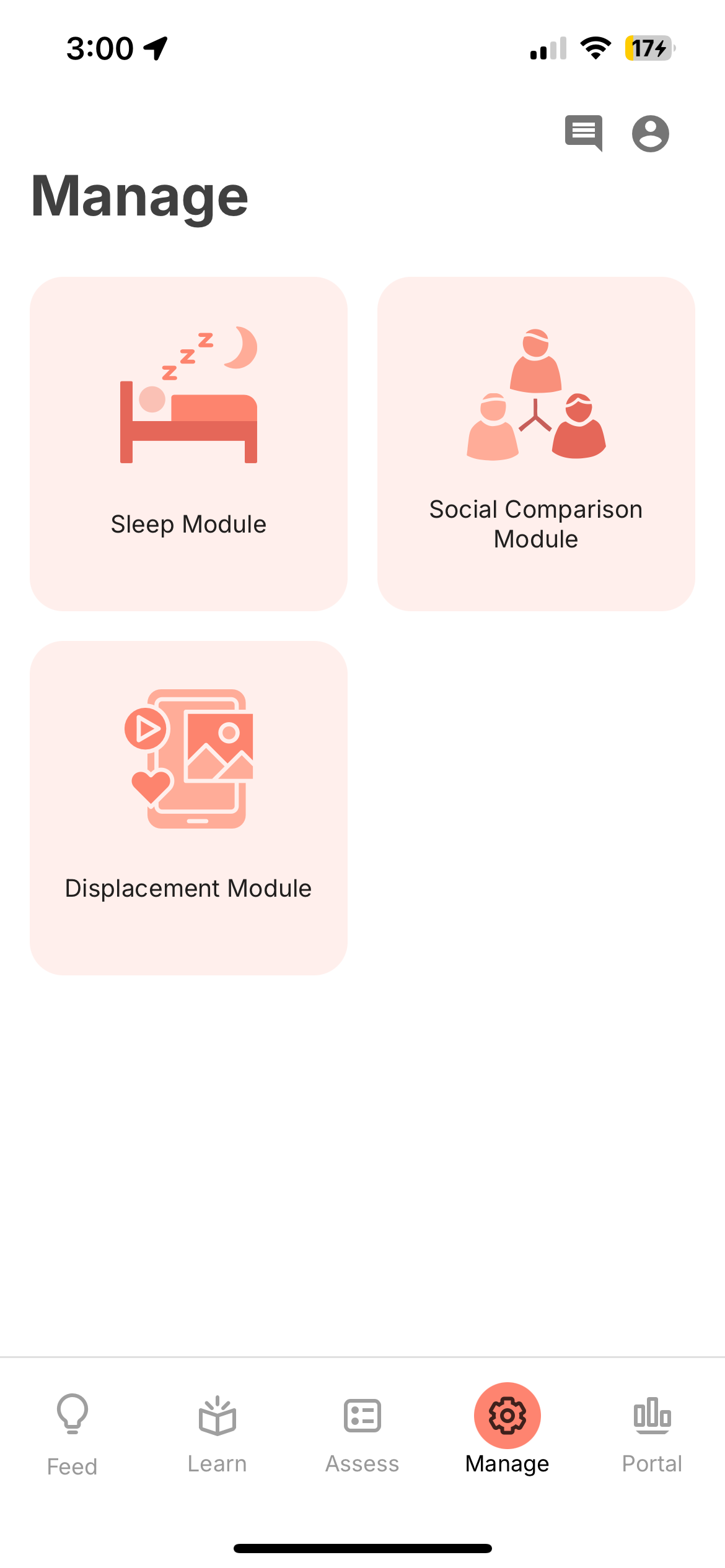
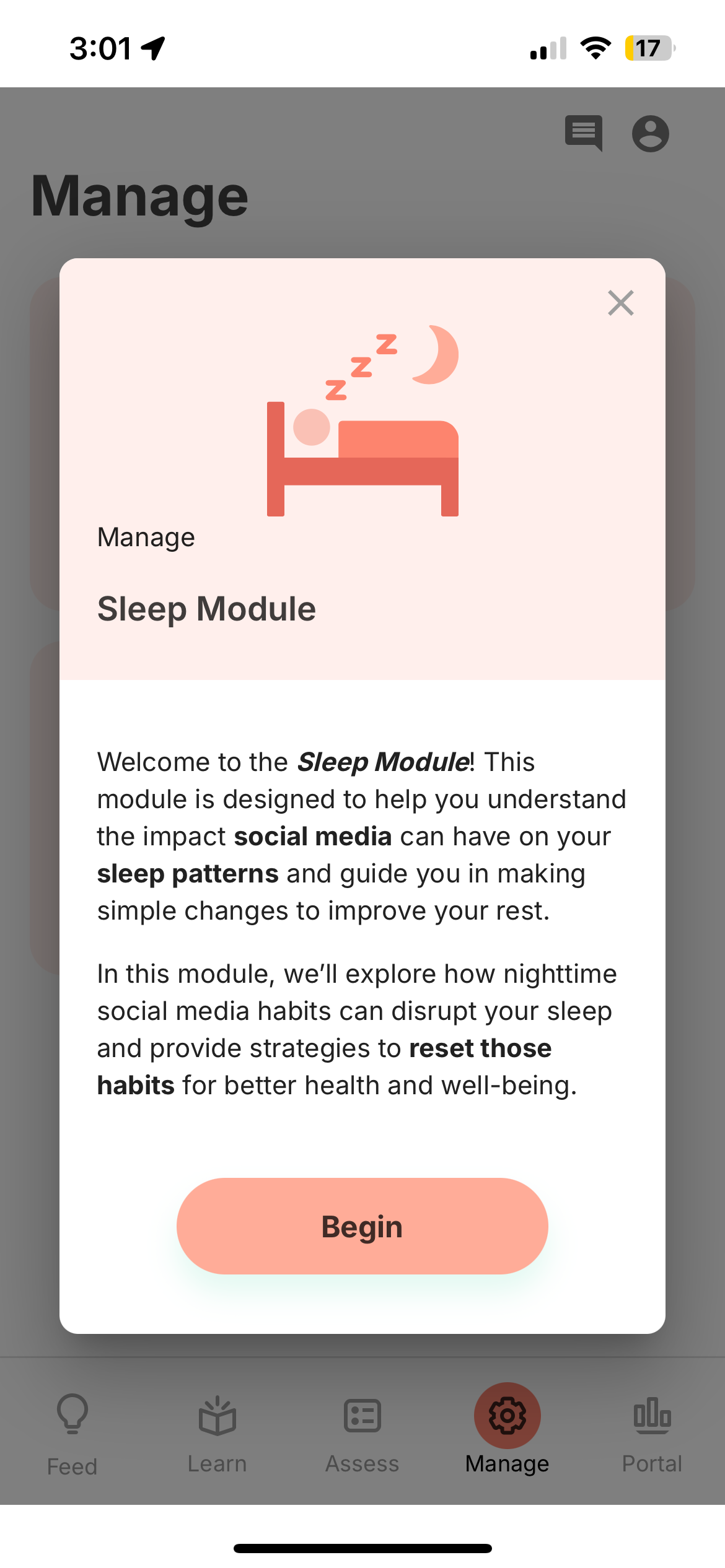
When a participant taps an activity group, the included activities are presented one after another in the configured order. The group appears as a single item in the Feed and on the selected tab(s).
Scheduling Groups
Activity groups can be scheduled like individual activities. A single notification is sent for the group, and the participant completes all included activities in sequence. See Scheduling for details.
Use Cases
- Administering a battery of surveys in a fixed order
- Combining a survey with a cognitive game for a single assessment session
- Creating a daily check-in that includes mood tracking, journaling, and a breathing exercise
Example: Social Media Study — Sleep Module
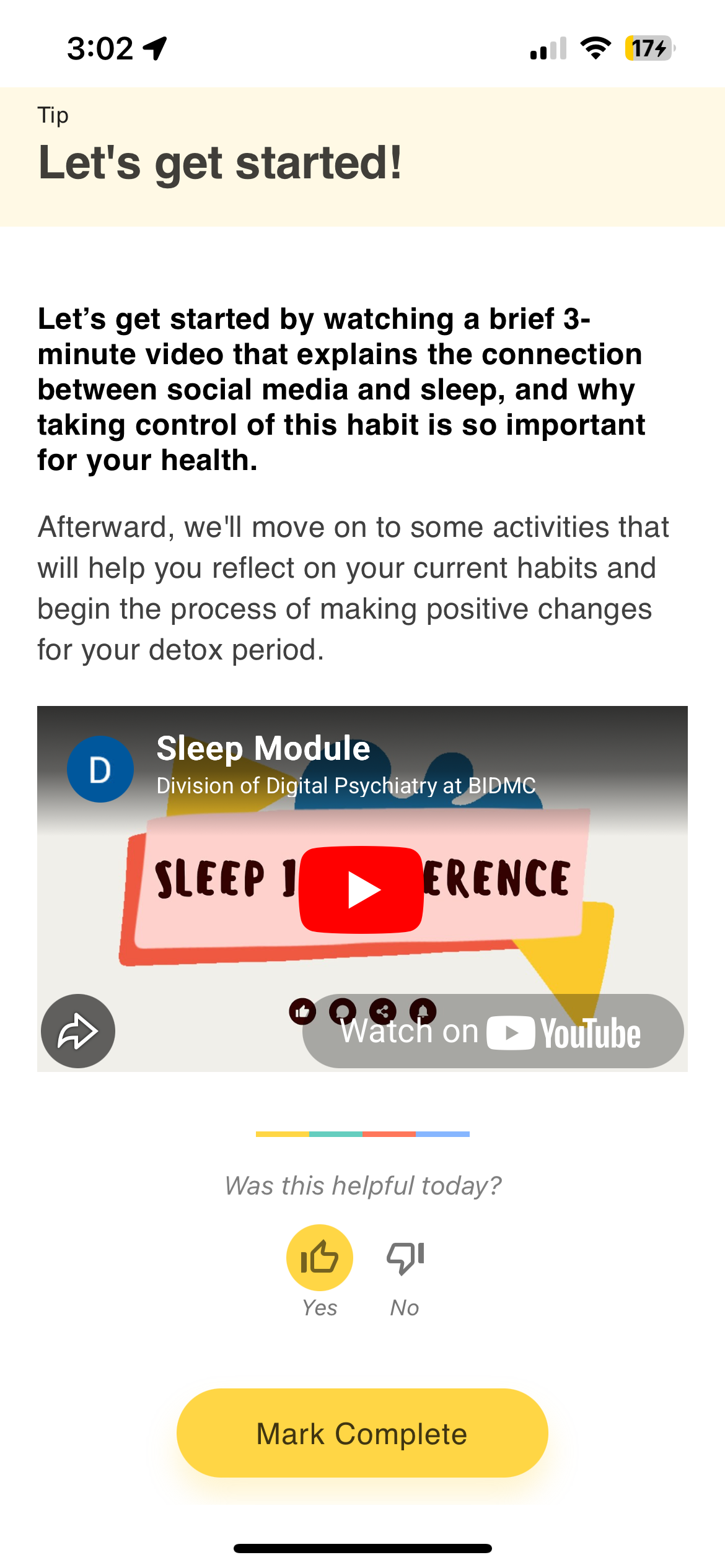
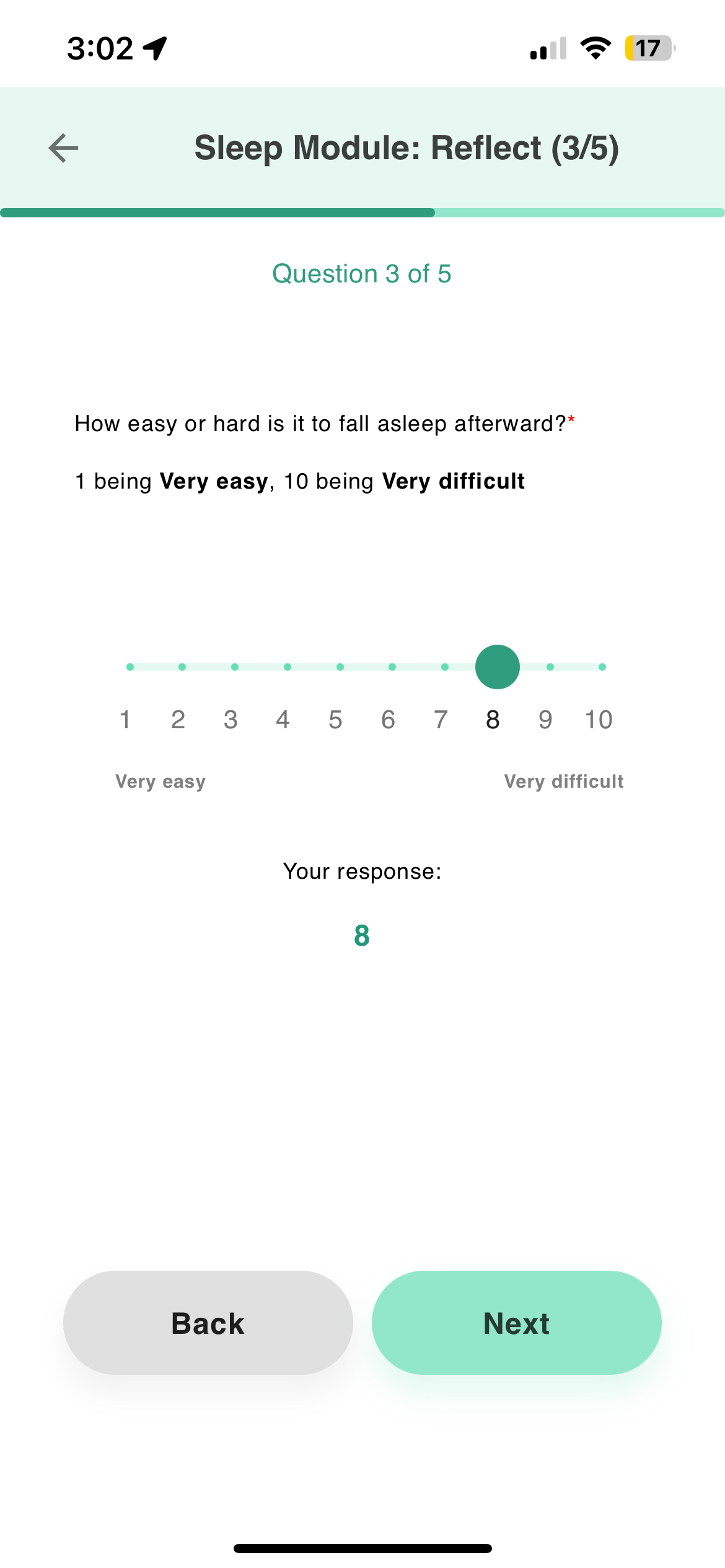
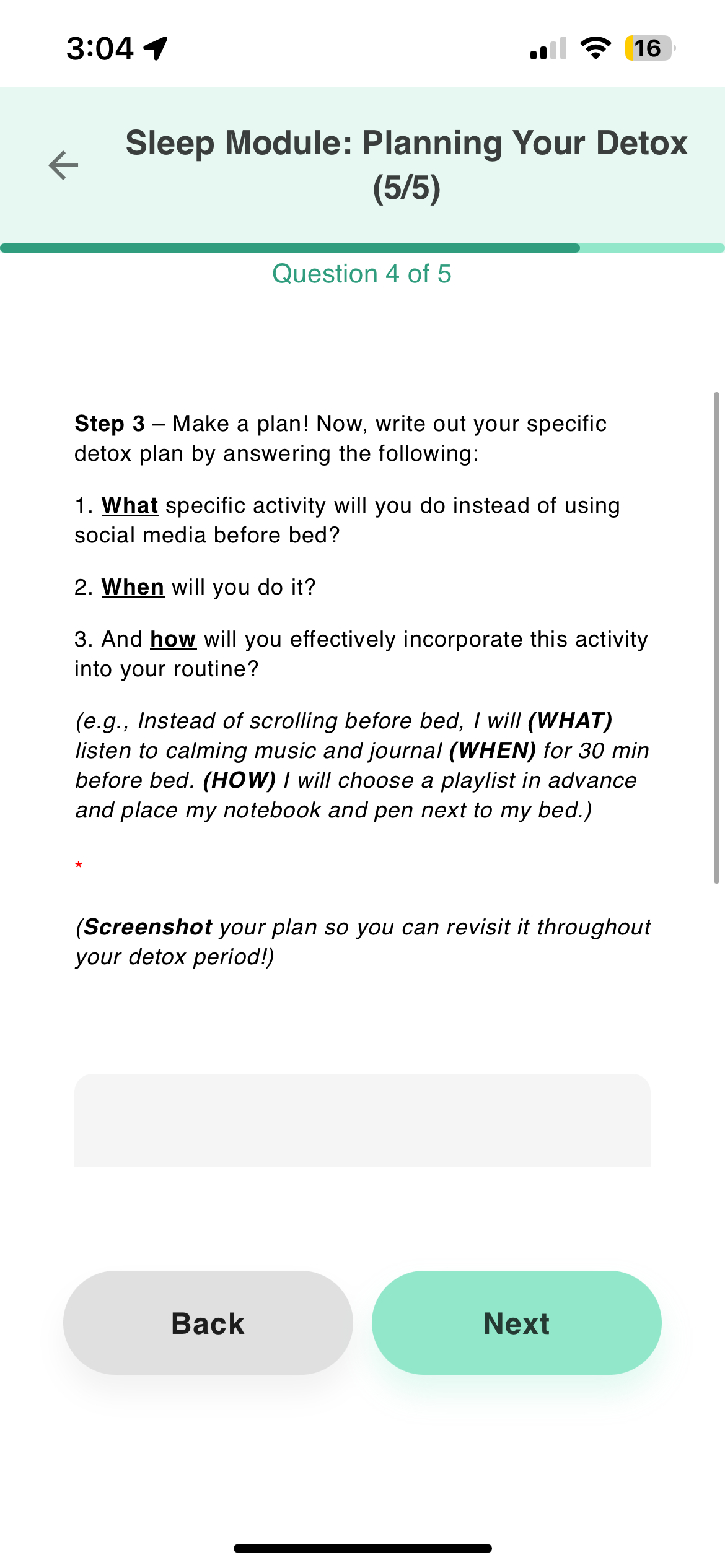
The Sleep Module is an activity group from the Social Media study that combines tips and surveys into a guided session. It bundles psychoeducation tips (with embedded YouTube videos), reflection surveys (slider and free-text questions), and a planning activity. Activity groups can mix any activity types — tips, surveys, games, breathing exercises — in whatever order the study requires.
Data
Each individual activity within the group produces its own ActivityEvent with the appropriate schema. The group itself does not produce a separate event.
View in Portal | Python SDK | API Reference