Groups Tab
Groups (also referred to as "Studies" in some contexts) organize participants, activities, and sensors together. The Groups tab provides tools for creating and managing these organizational units.
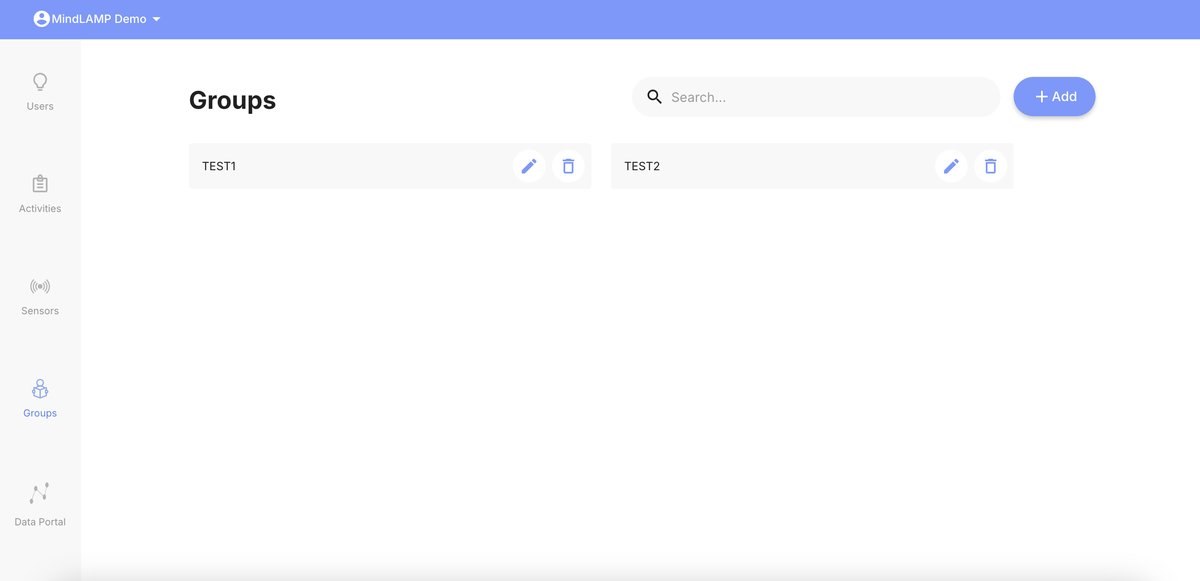
Creating a Group
Groups can be created from two places:
From the Groups tab:
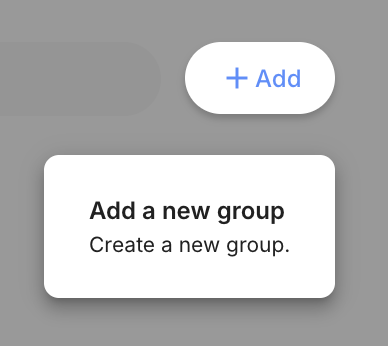
- Click the + Add button and select Add a new group.
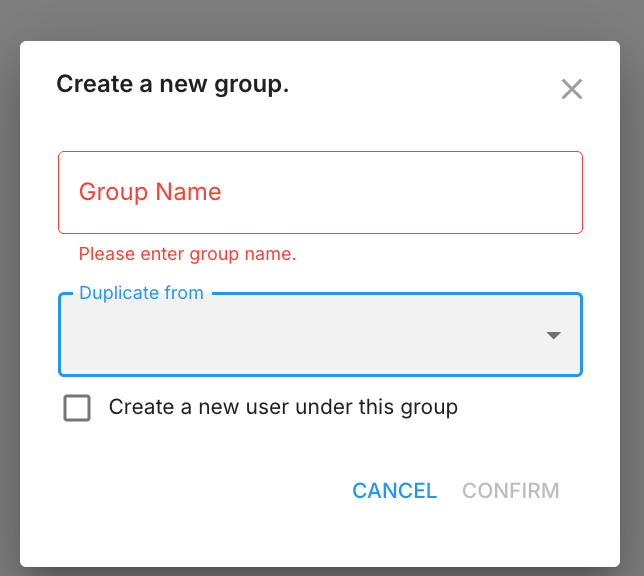
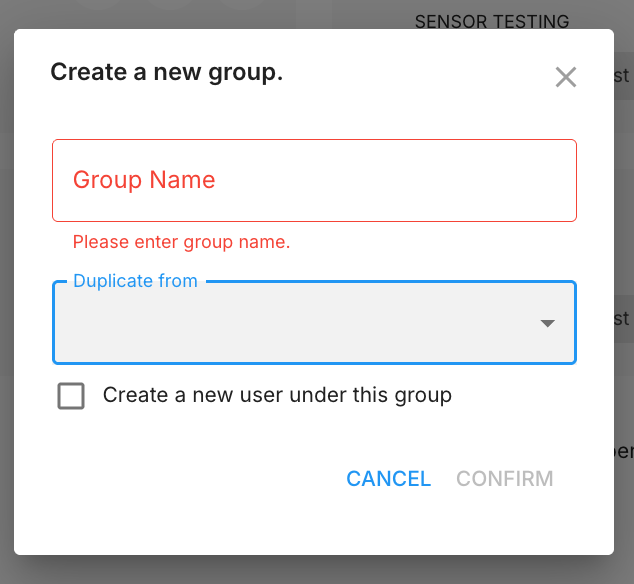
- Enter a group name.
- Optionally select an existing group from the Duplicate from dropdown to copy its activities and sensors.
- Optionally check Create a new user under this group to add an initial participant.
- Click Confirm.
From the Users tab:
- Click the + Add button.
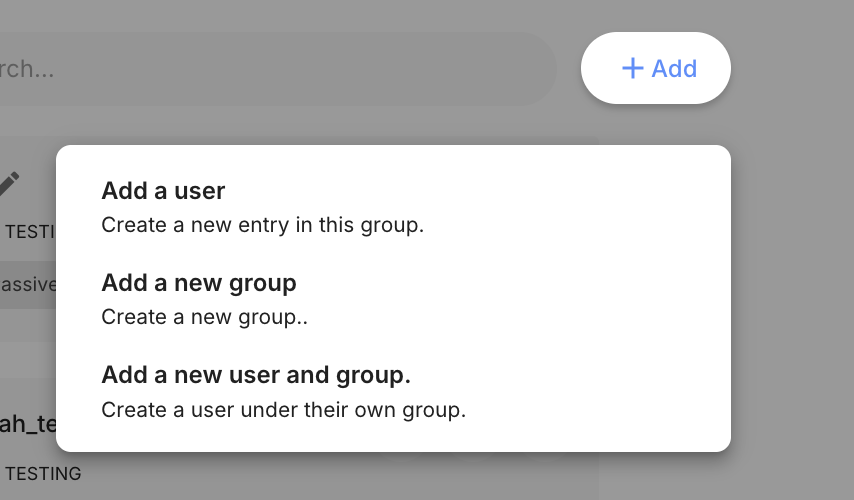
- Select Add a new group for a simple group (name only):
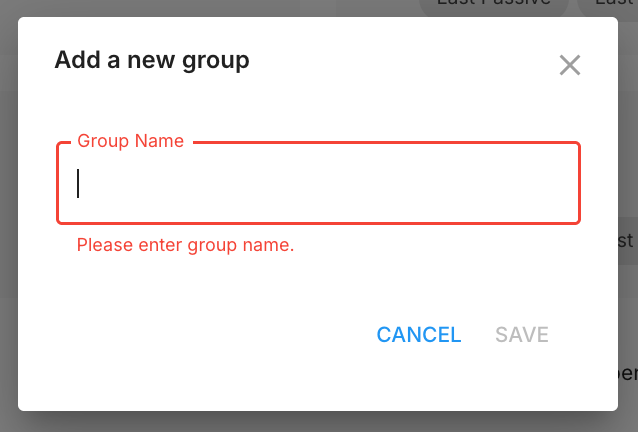
- Or select Add a new user and group to access the full creation dialog with the Duplicate from option and automatic user creation:
Duplicating a Group
When creating a new group (from either the Groups tab or the Users tab's "Add a new user and group" option), select an existing group from the Duplicate from dropdown. The new group inherits:
- Activities — All activity configurations from the source group.
- Sensors — All sensor configurations from the source group.
Participants are not copied. The new group starts with no participants unless you check the "Create a new user under this group" option.
This is useful when setting up multiple arms of a study with similar configurations.
Group Structure
Each group contains:
- Participants — The users enrolled in the group.
- Activities — The surveys, games, and other activities configured for the group.
- Sensors — The passive data collection configuration for the group.
- Schedules — Activity schedules that apply to all participants in the group.
All configurations — activities, sensors, and schedules — are set at the group level and apply uniformly to every participant in that group. To provide different configurations to different participants, place them in different groups.
Naming Conventions
Use descriptive names that help identify the group's purpose (e.g., "Control Group", "Intervention Arm A", "Clinic - Springfield"). Avoid using personally identifying information in group names.
Managing Groups
From the Groups tab, you can:
- View all groups and their participant counts.
- Navigate into a group to manage its participants, activities, and sensors.
- Rename or delete groups.
Deleting a group will remove all participants and their data within that group. This action is irreversible.