Feed Tab
The Feed tab is the home screen of the mindLAMP app. It displays a timeline of scheduled activities for the current day and week, serving as the central hub for participant engagement.
What the Feed Shows
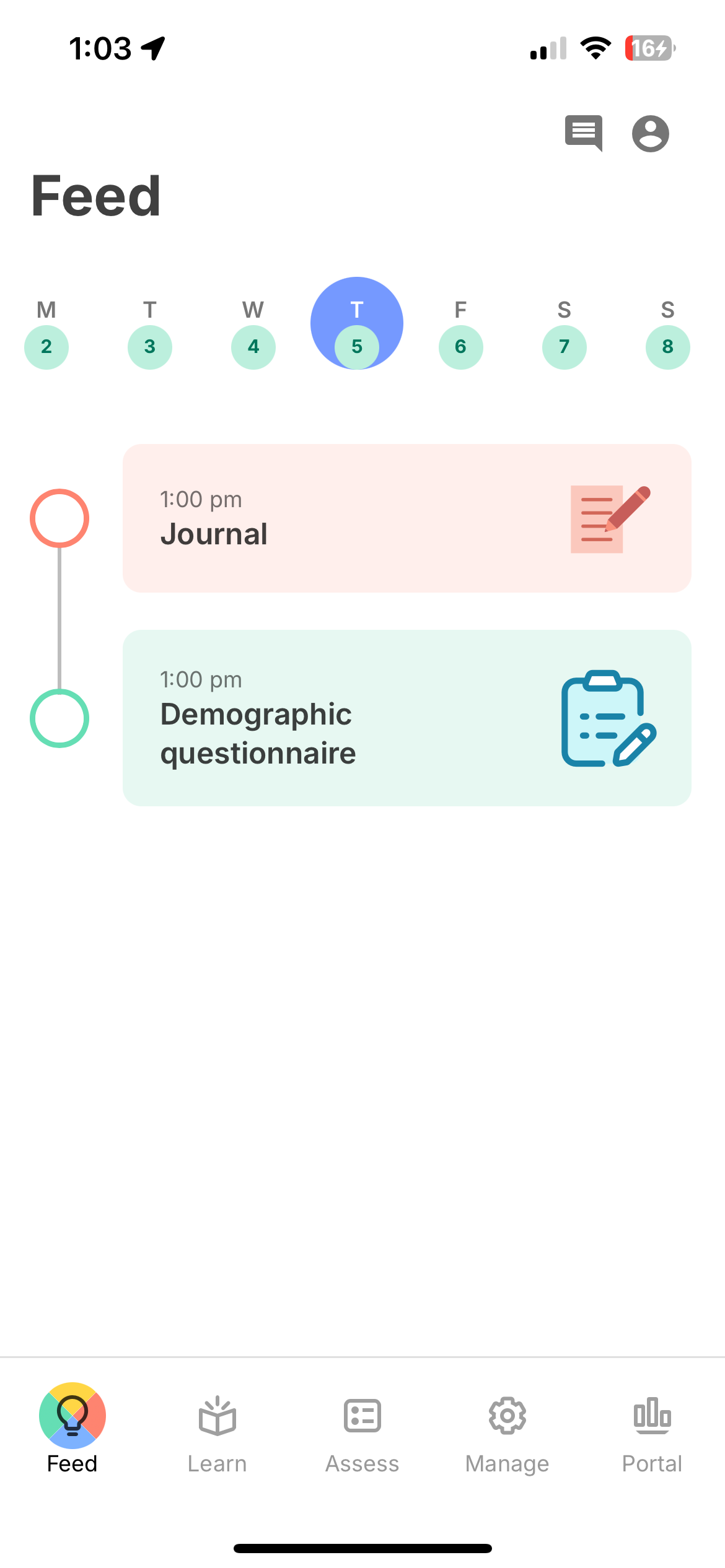
The Feed displays activity cards arranged in a timeline for the selected day. Each card shows the scheduled time, activity name, and a category icon. Cards are color-coded to match the tab where that activity type lives:
- Learn (e.g., tips) — yellow background
- Assess (e.g., surveys, cognitive games) — teal/green background
- Manage (e.g., Journal) — coral/red background
- Prevent — blue background
A week view at the top lets participants navigate between days to see their schedule for the week.
Activity Clickability
Activity cards become tappable once their scheduled time arrives. Tap an activity card to begin it. For details on how schedules are configured, see Scheduling Activities.
- Standard schedules (daily, weekly, biweekly, monthly, etc.) — The activity becomes clickable at its scheduled time and stays clickable until the end of that calendar day (midnight).
- Sub-daily schedules (hourly, every 3h, every 6h, every 12h) — Each occurrence is clickable only during its interval. For example, with an "every 3h" schedule starting at 9:00 AM, the 9:00 AM instance is clickable from 9:00 AM to 12:00 PM, the 12:00 PM instance from 12:00 PM to 3:00 PM, and so on.
- Custom time schedules — Each time slot is clickable from its scheduled time until the next scheduled time.
Activities that have not yet reached their scheduled time still appear in the Feed but do not respond to taps.
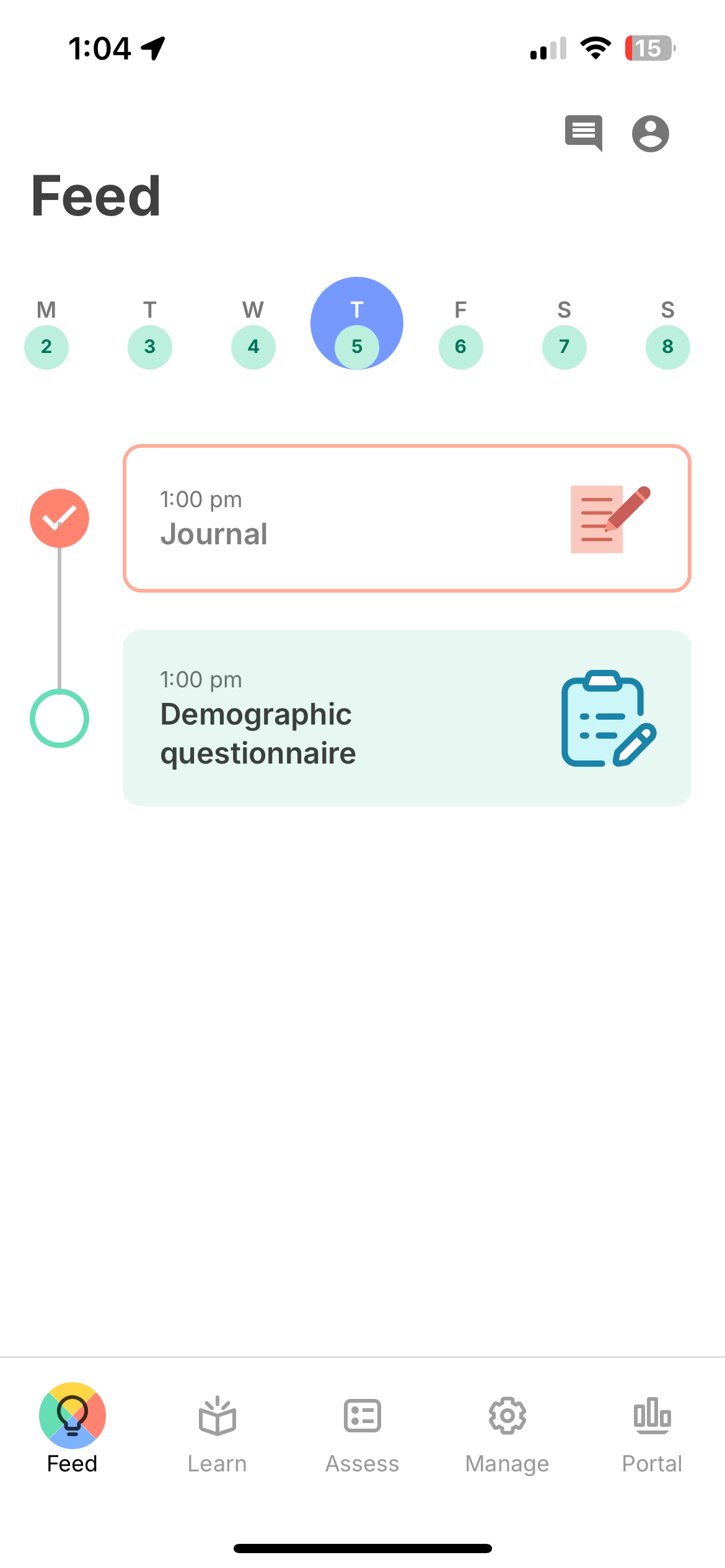
After completion, activity cards appear with a bordered outline and a checkmark on the timeline indicator, as shown below.
Push Notifications
Participants receive push notifications at the times configured in the activity schedule. They appear on the device lock screen and in the notification center, and are received regardless of whether the app is open, backgrounded, or closed. Tapping a notification opens the app and navigates directly to the activity.
For notifications to work:
- Notification permissions must be granted (see Download & Setup).
- The participant must be logged in.