Download & Set Up mindLAMP
mindLAMP is available on iOS, Android, and the web. The mobile apps support passive sensor data collection and push notifications; the web version is best for dashboard access and does not collect passive data.
iOS
-
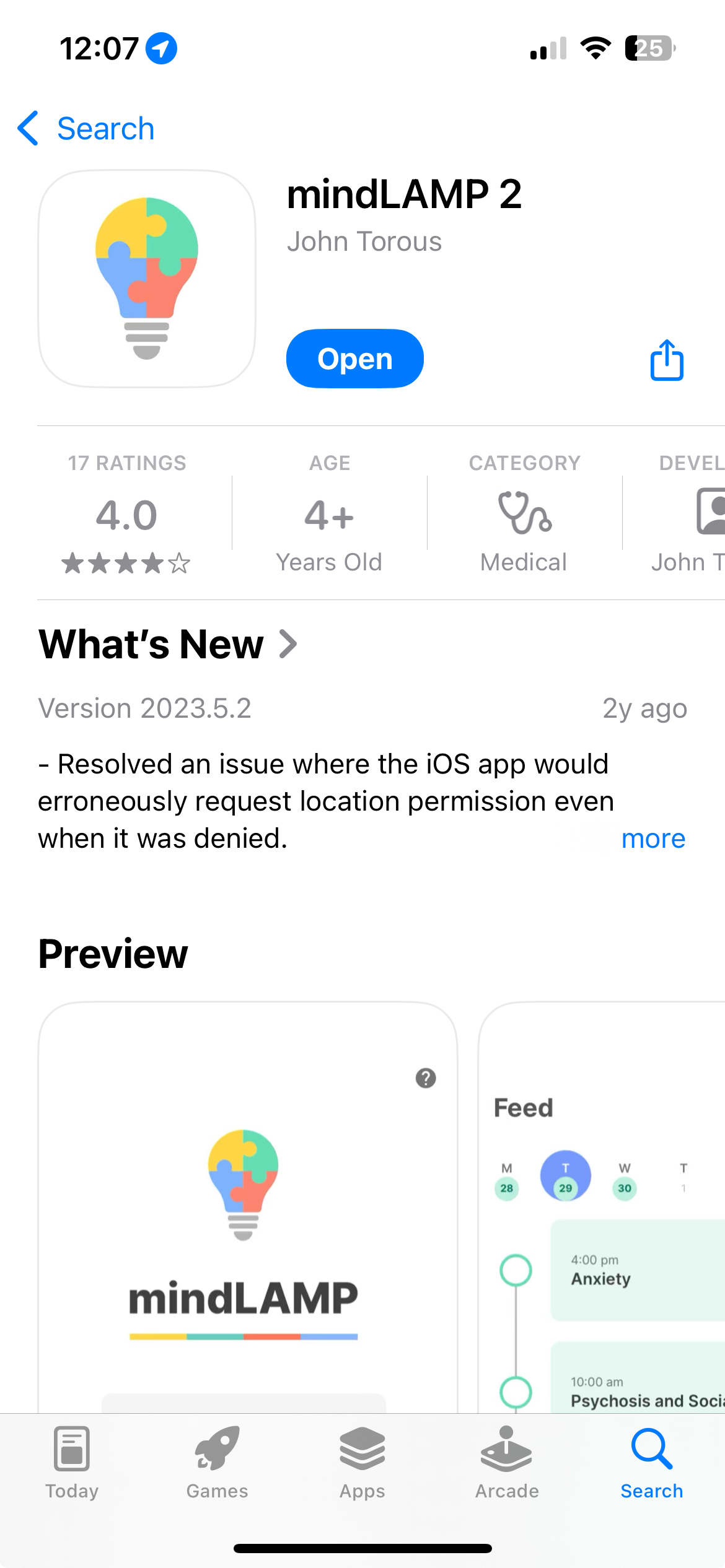
Download mindLAMP 2 from the App Store and open the app.
-
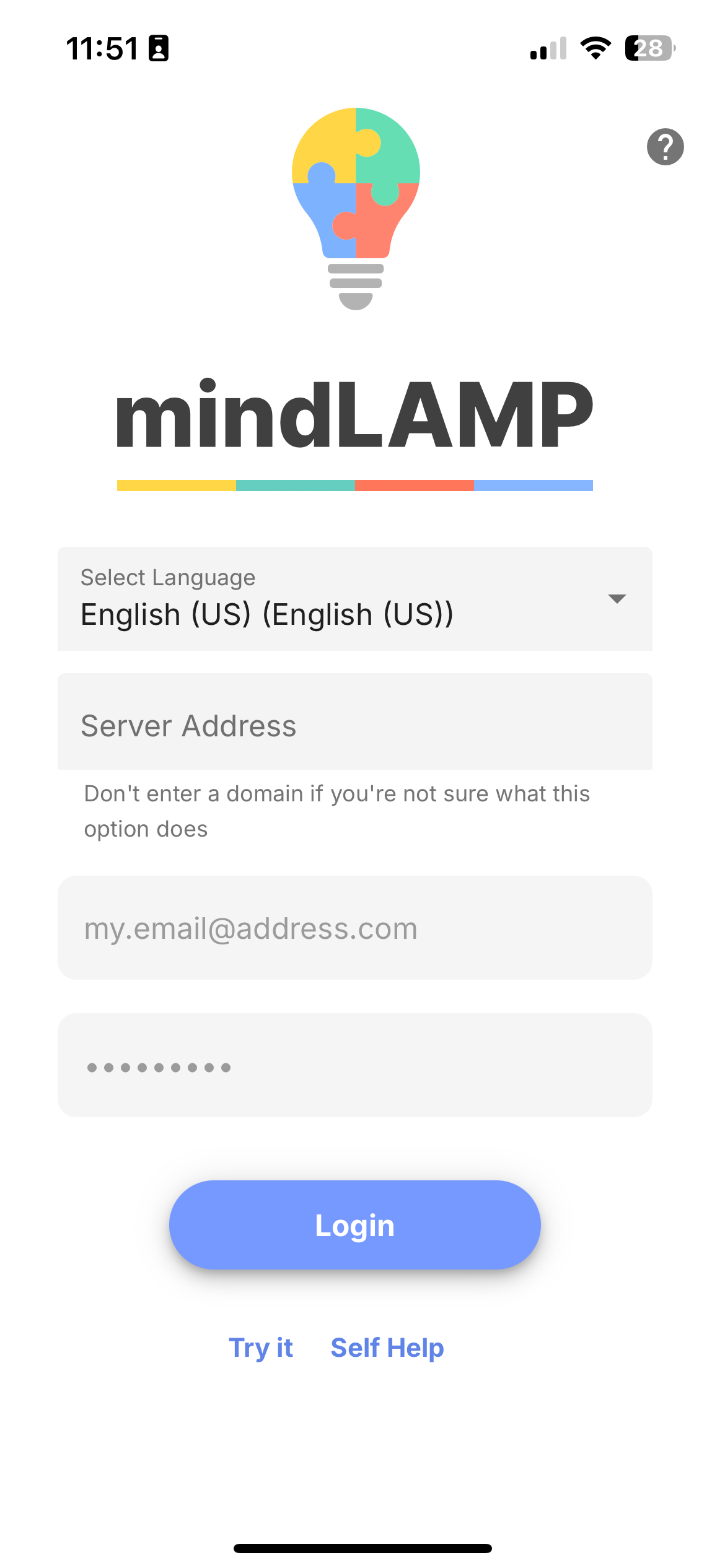
Sign in with your credentials.
-
The app will ask for permissions specific to the sensors your study is configured to collect. Allow all permissions when prompted. For the HealthKit prompt, select Turn On All.
iOS permission reference
Permission Enables Location (Always) with Precise Location GPS data collection. Must be "Always", not "While Using". Motion & Fitness Accelerometer, pedometer, and activity recognition Notifications Push notification delivery of scheduled activities Bluetooth Nearby device detection Microphone Voice recording activities Speech Recognition Speech-to-text features in voice activities HealthKit Health data (steps, heart rate, sleep, workouts, and other HealthKit-sourced metrics) Background App Refresh Continuous background data collection 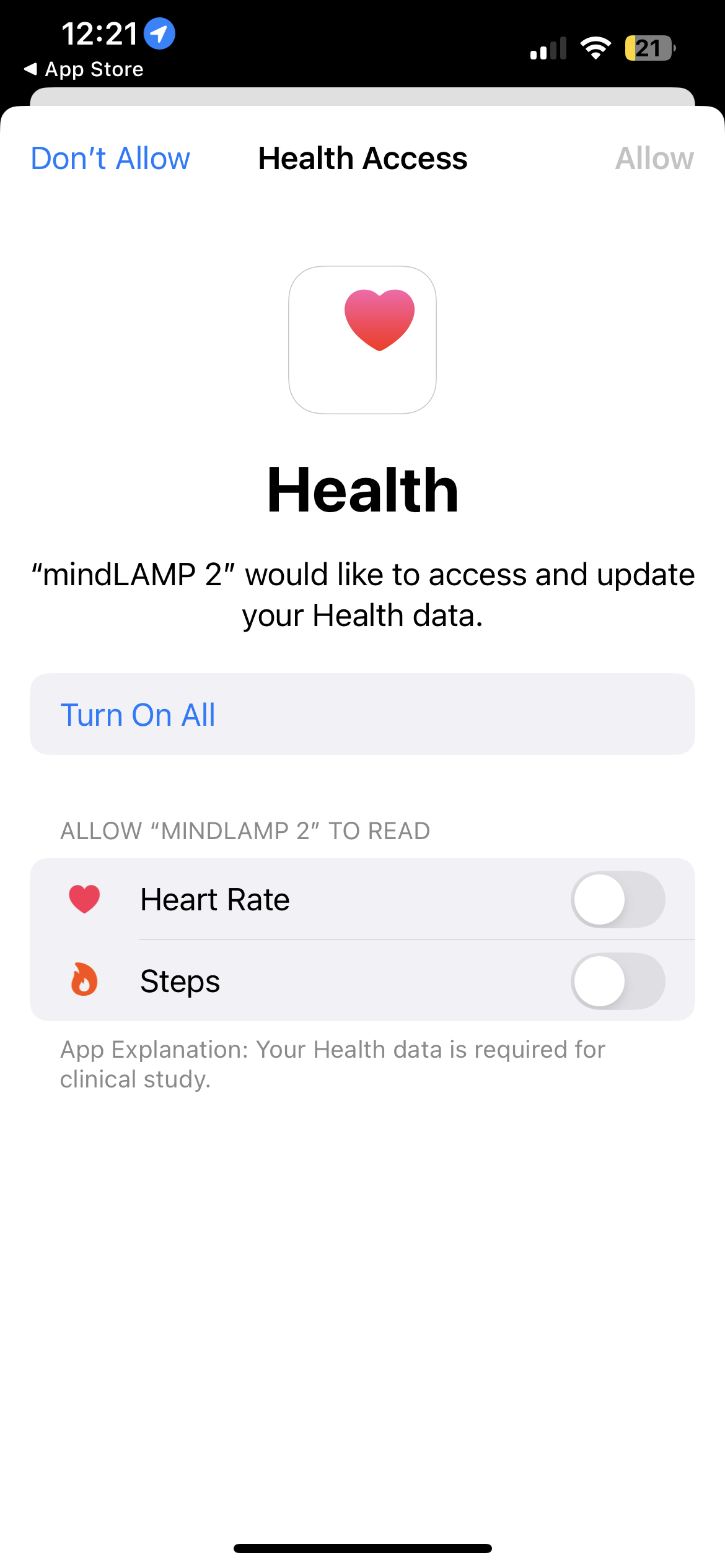
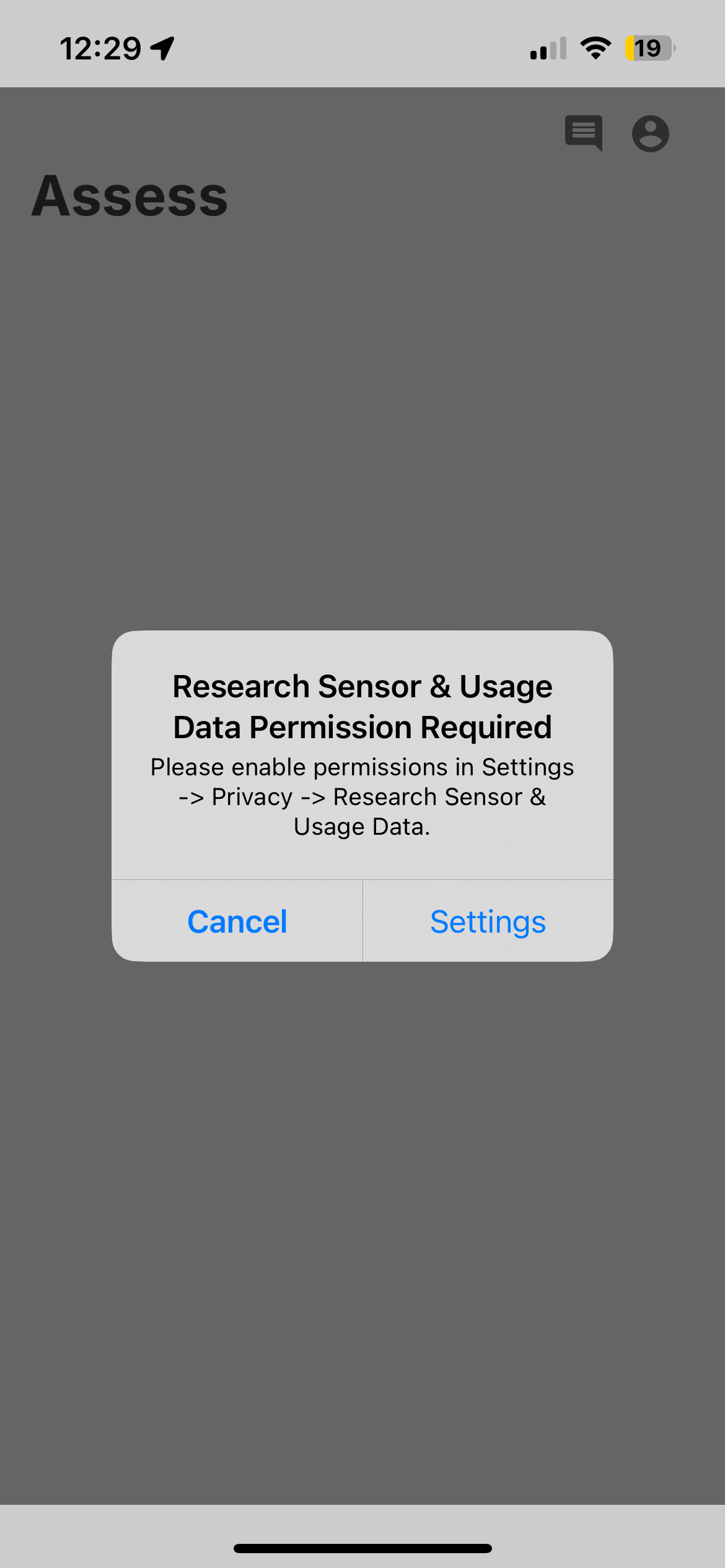
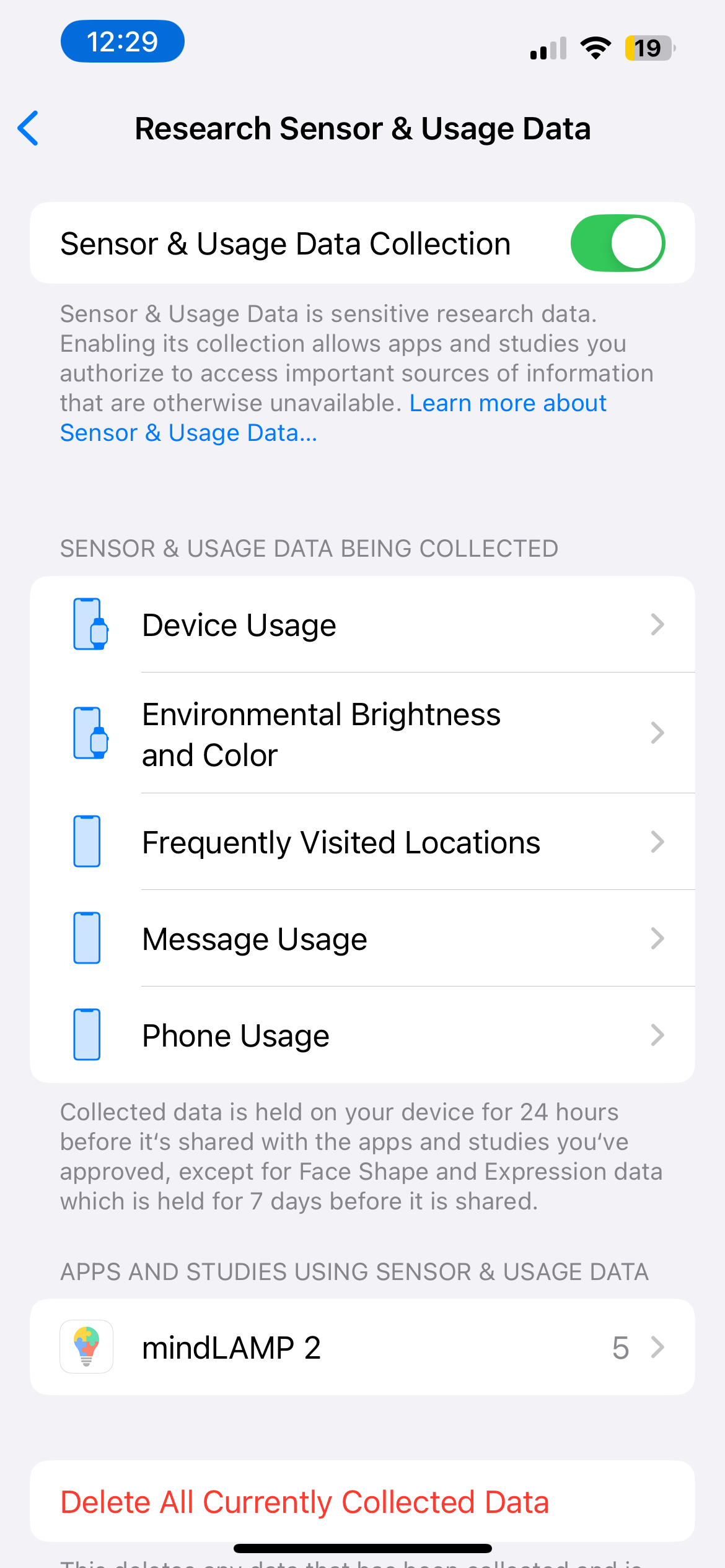
You will also be prompted to enable sensor collection for research. Tap Settings when you see the "Research Sensor & Usage Data Permission Required" prompt, then enable Sensor & Usage Data Collection in Settings > Privacy > Research Sensor & Usage Data.
-
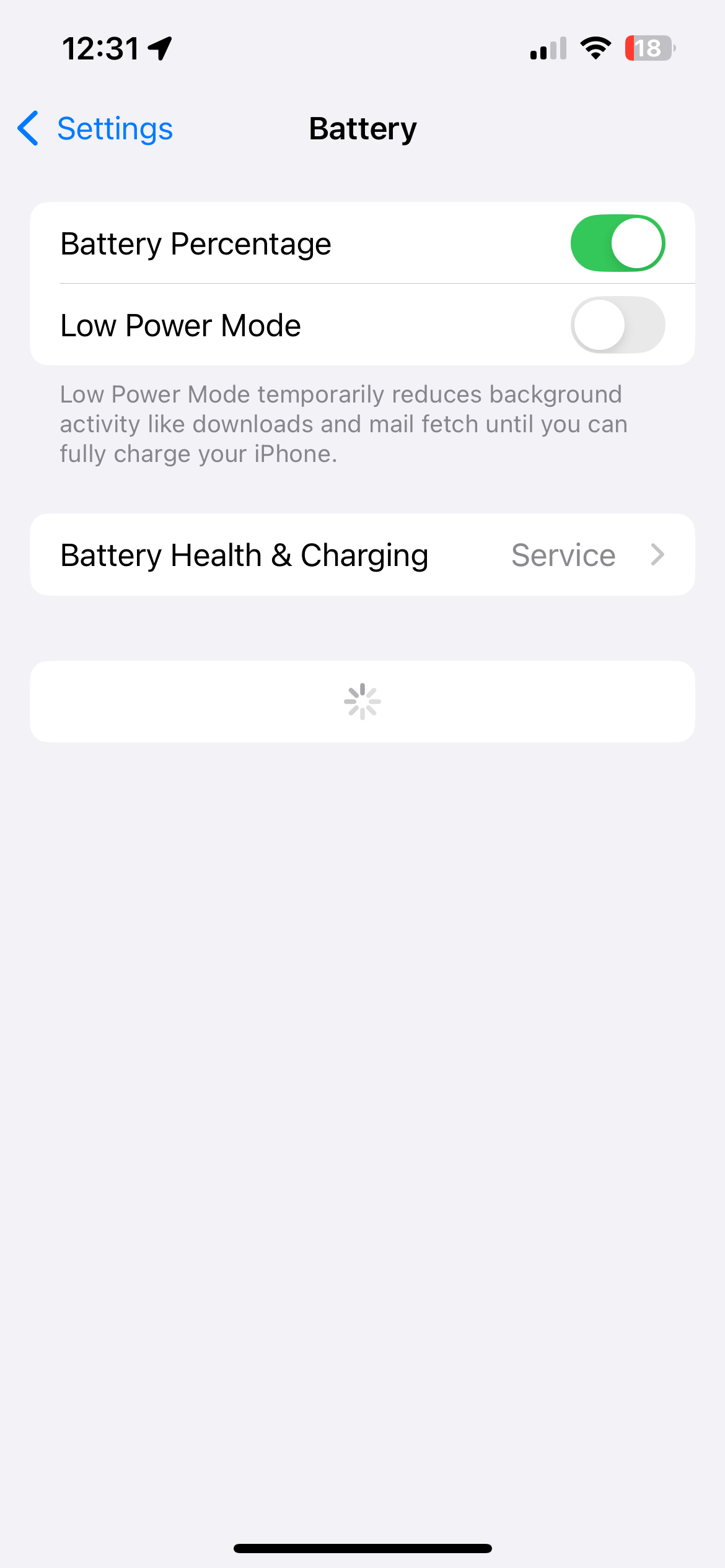
In Settings > Battery, disable Low Power Mode.
-
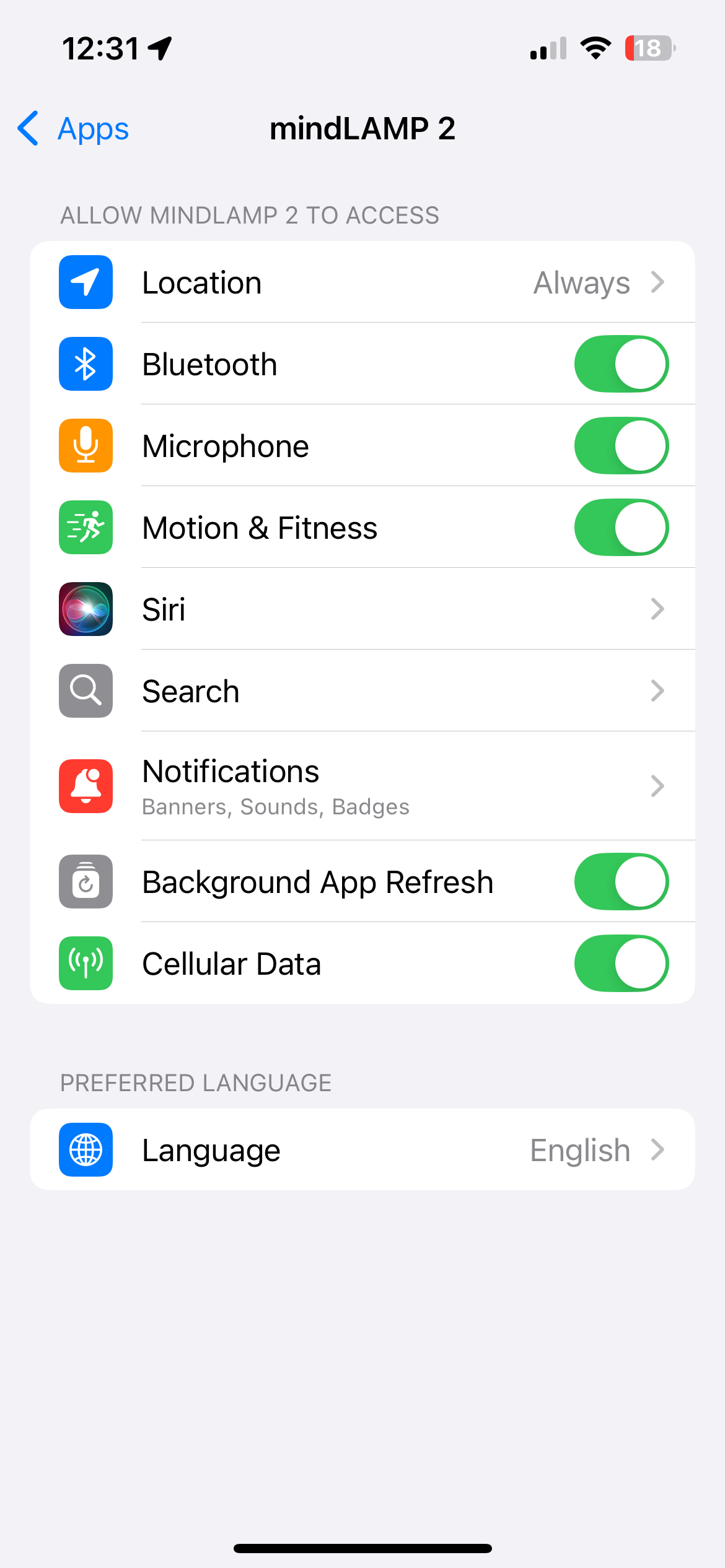
Open the Settings app and find "mindLAMP 2". Verify the following:
- Location is set to Always with Precise Location enabled.
- Motion & Fitness is enabled.
- Notifications are allowed.
- Background App Refresh is enabled.
- Cellular Data is enabled (if applicable).
Apple Watch
- Pair your Apple Watch with your iPhone using the Watch app.
- Download the mindLAMP 2 app from the App Store on the Watch.
- Open the app and sign in on the Watch with your credentials.
Android
Before using the app, install Health Connect (or Google Fit on older devices). Health Connect is required for health data integration and also enables data from Fitbit and other wearables to flow to mindLAMP through your phone.
-
Download mindLAMP 2 from the Play Store and open the app.
-
Sign in with your credentials.
-
The app will ask for permissions specific to the sensors your study is configured to collect. Allow all permissions when prompted.
Android permission reference
Permission Enables Location (Allow all the time) GPS data collection Physical Activity Accelerometer and activity recognition Notifications Push notification delivery Bluetooth Nearby device detection Microphone Voice recording activities Phone State Telephony (call/text) metadata Nearby WiFi Devices WiFi device detection Health Connect Health platform data (steps, heart rate, sleep) Battery optimization exemption Uninterrupted background collection -
After signing in and viewing the Feed tab, leave the app and verify:
- In Settings > Apps > mindLAMP 2 > Permissions > Location, select Allow all the time.
- In Settings > Apps > mindLAMP 2 > Battery, select Don't optimize (unrestricted).
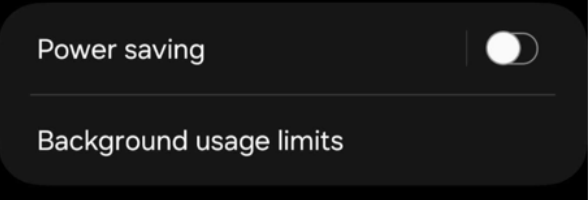
- In Settings > Battery, disable Battery Saver (Power saving) and any automatic schedules. Make sure mindLAMP is not listed under Background usage limits.
- Health Connect permissions are granted for all requested data types.
WearOS
- Pair a WearOS-based watch (Samsung Galaxy Watch 4+, Fossil, TicWatch, Motorola, Huawei) using the Wear app.
- Download mindLAMP 2 from the Play Store on the watch.
- Open the app and sign in on the watch with your credentials.
Web
Access mindLAMP in a desktop browser at dashboard.lamp.digital.
The web version provides full access to the dashboard and activities but does not support:
- Passive sensor data collection
- Push notifications
- Background data collection
For full passive data collection, use the mobile app.