Signing In
Login Flow
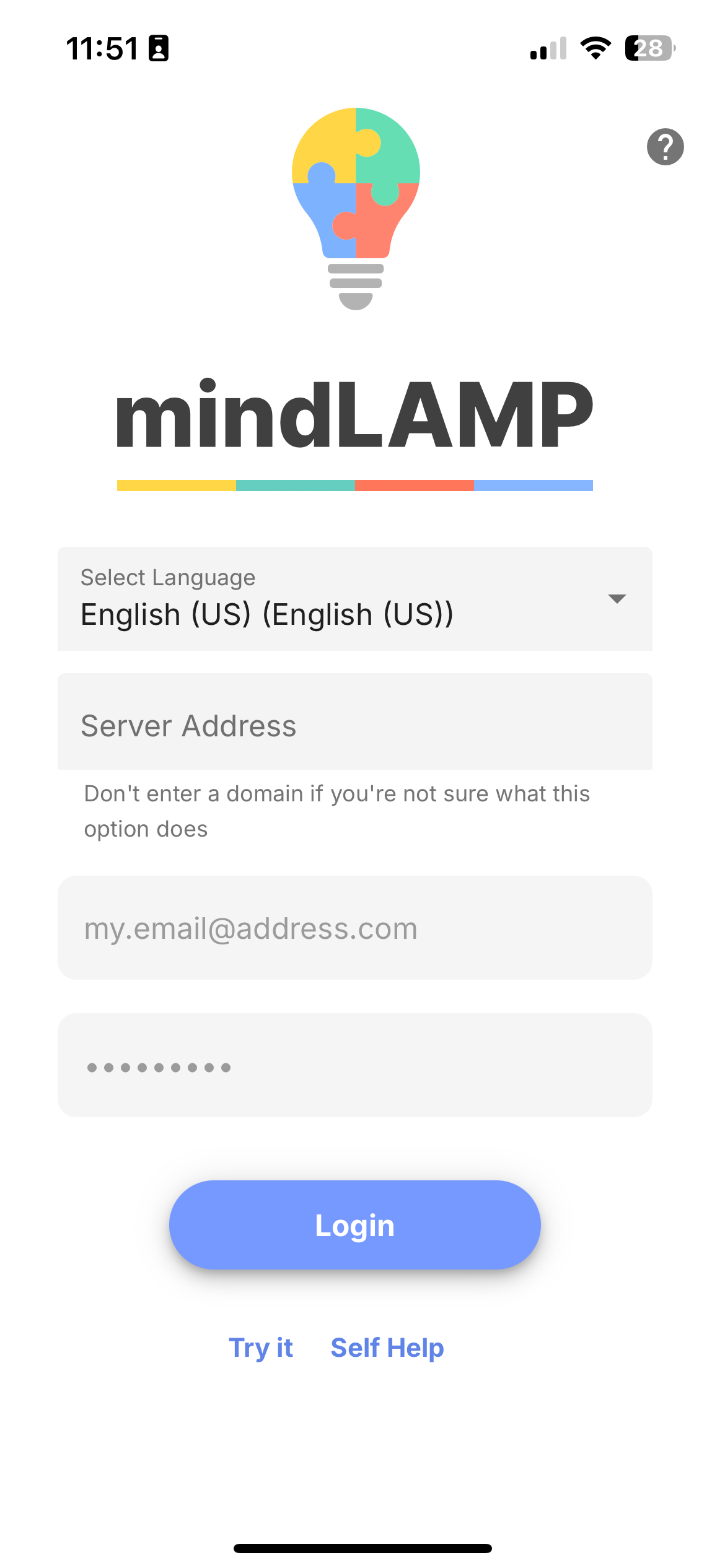
- Open the mindLAMP app or navigate to dashboard.lamp.digital in a browser.
- Select your preferred language from the language selector.
- If your organization hosts its own server, enter the server address. Leave blank to use the default server.
- Enter your credentials (email and password). All values are case-sensitive. Coordinators (researchers, clinicians, or digital health navigators) receive credentials from their system administrator. End users (participants or patients) receive credentials from their program coordinator.
- Tap Login.
Language Support
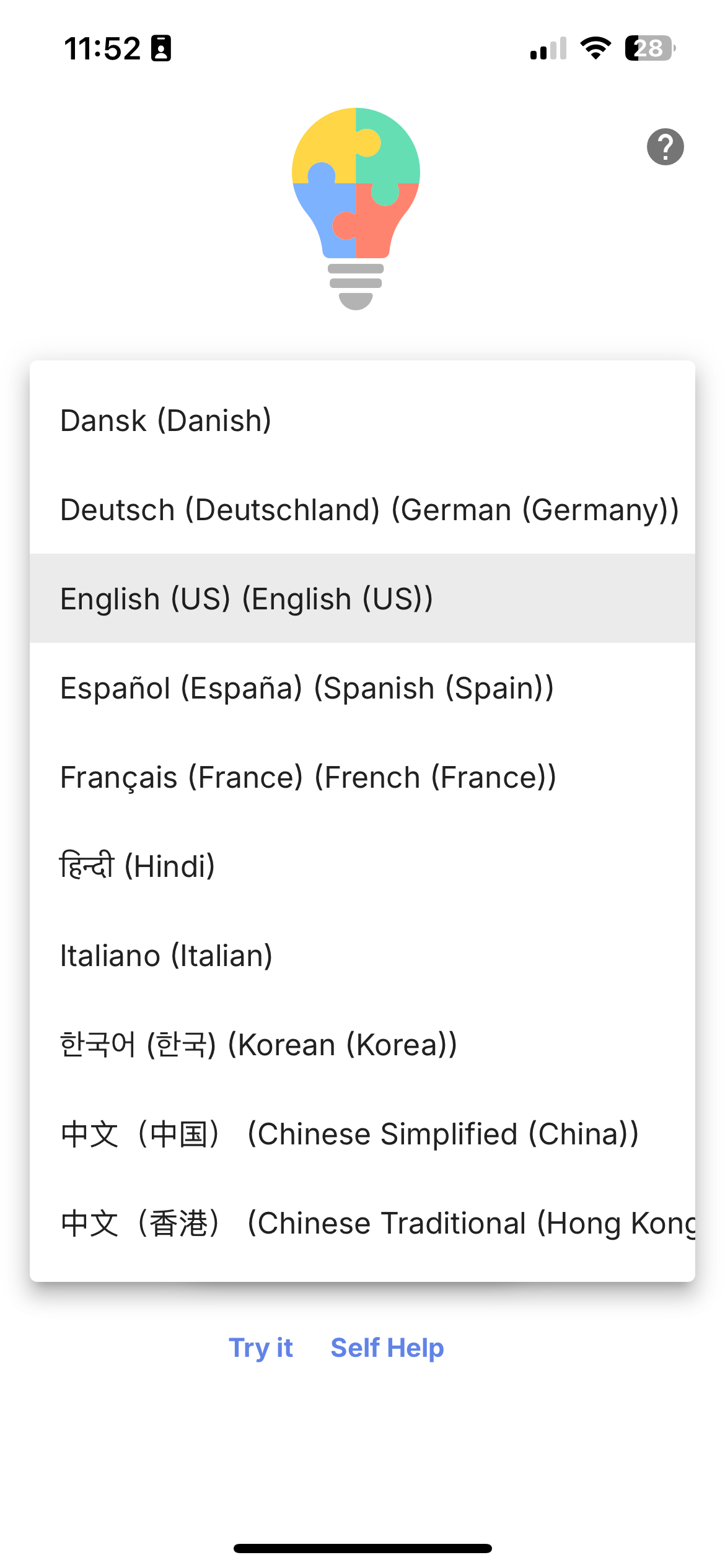
mindLAMP supports 10 languages: English, Spanish, French, Hindi, German, Italian, Korean, Danish, Chinese (Simplified), and Chinese (Traditional). The language selector appears on the login screen before sign-in. All app content (tabs, built-in labels, and system text) will display in the selected language.
Try It Mode
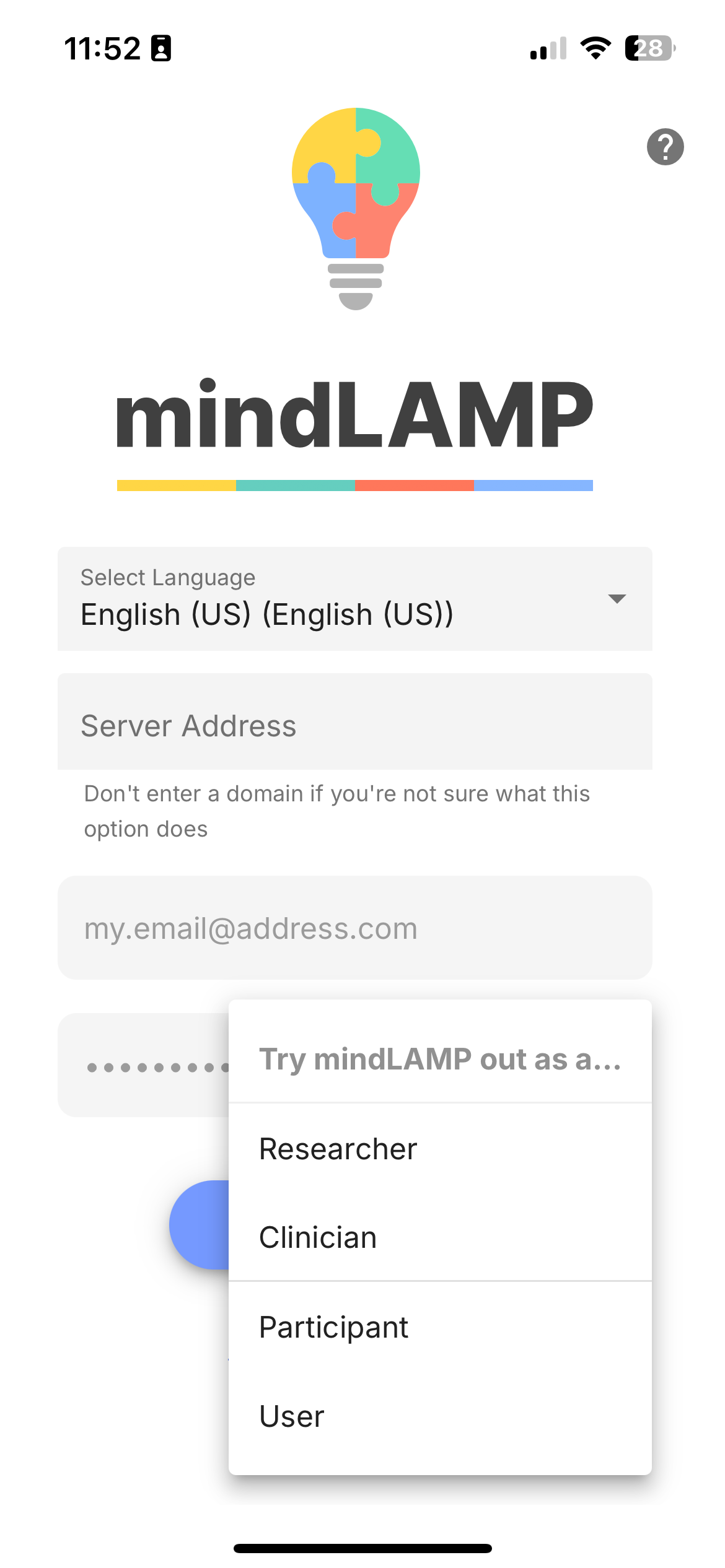
If you or your organization does not yet have access to mindLAMP, tap Try It below the login button. You will be prompted to select a role (Researcher, Clinician, Participant, or User) to preview the corresponding interface. This launches a demo mode that lets you explore the app's features without needing an account. No data is saved in Try It mode.
Self Help Mode
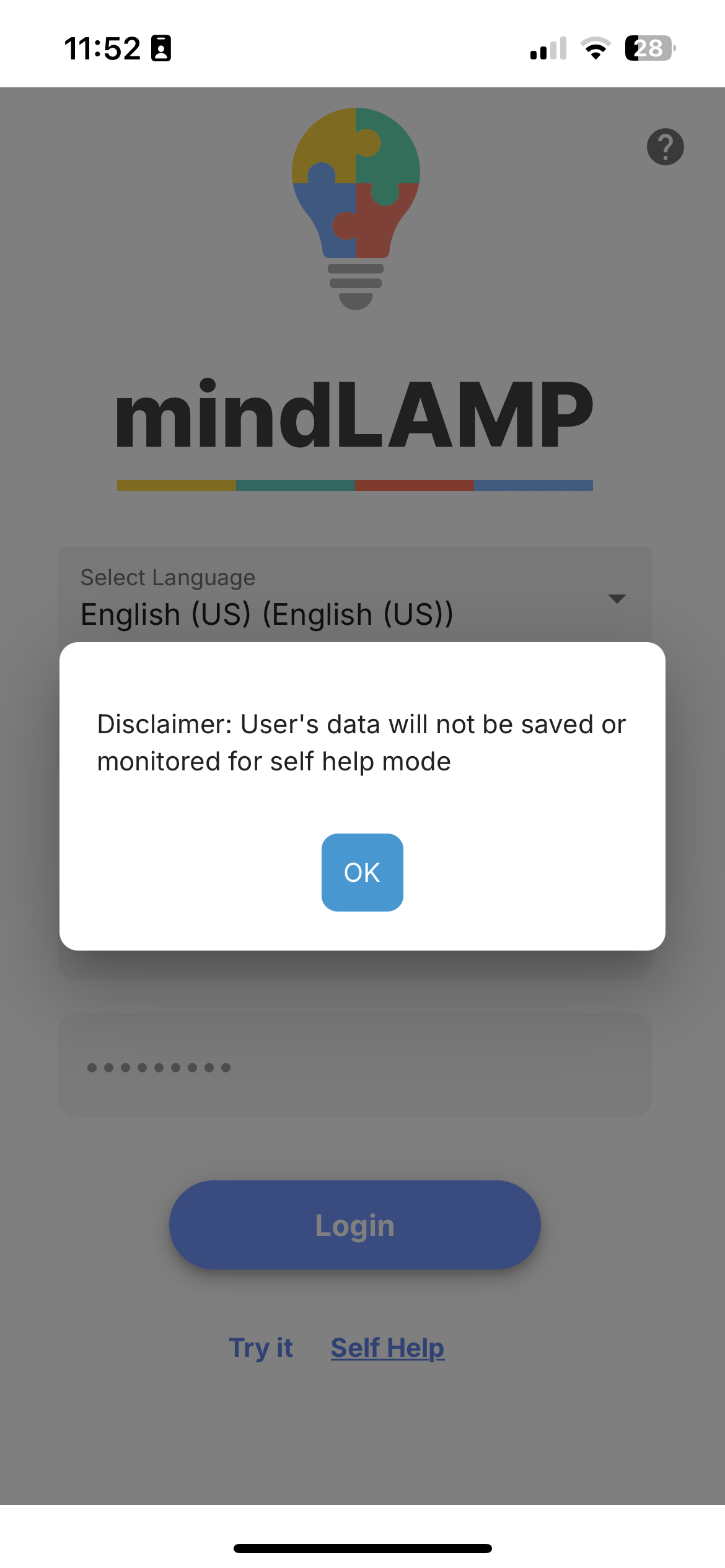
The Self Help option loads a preset local database with sample activities, allowing individuals to use the app for personal tracking without being part of a study or clinical program. No server account is created — data is stored locally on the device.
Credential Types
mindLAMP uses a three-level credential hierarchy:
- Server Administrator — Full access to all data and configuration across the entire server.
- Researcher / Clinician — Access to their own groups and participants. Can create activities, manage participants, and view data within their scope.
- Participant — Access to their own app experience (Feed, Learn, Assess, Manage, Portal tabs) and their own data.
Staying Signed In
After signing in on a mobile device, the app remains signed in and continues collecting data in the background. Do not force-quit the app, as this interrupts data collection. See Background Collection for details.